Send to ZoodleBoard
Draw a box around anything you see online in Chrome and send an image of that instantly to ZoodleBoard. So easy!
Set it up one time, under a minute
-
Add it to Chrome
Add to ChromeThe Chrome Web Store opens. Click Add to Chrome, then Add extension.
-
Pin the button
At the top right of Chrome, click the puzzle piece . Next to Send to ZoodleBoard, click the pin .
You'll see the ZoodleBoard button
 at the top right of Chrome. You're done!
Use it every time
-
Open your board
Log in to zoodleboard.com and open a board, or start a ZoodleBoard Class.
-
Find what you want to show
In another tab, go to any website with the problem, picture or page you want.
-
Click the ZoodleBoard button
It's at the top right of Chrome. Or press Option + Shift + Z.
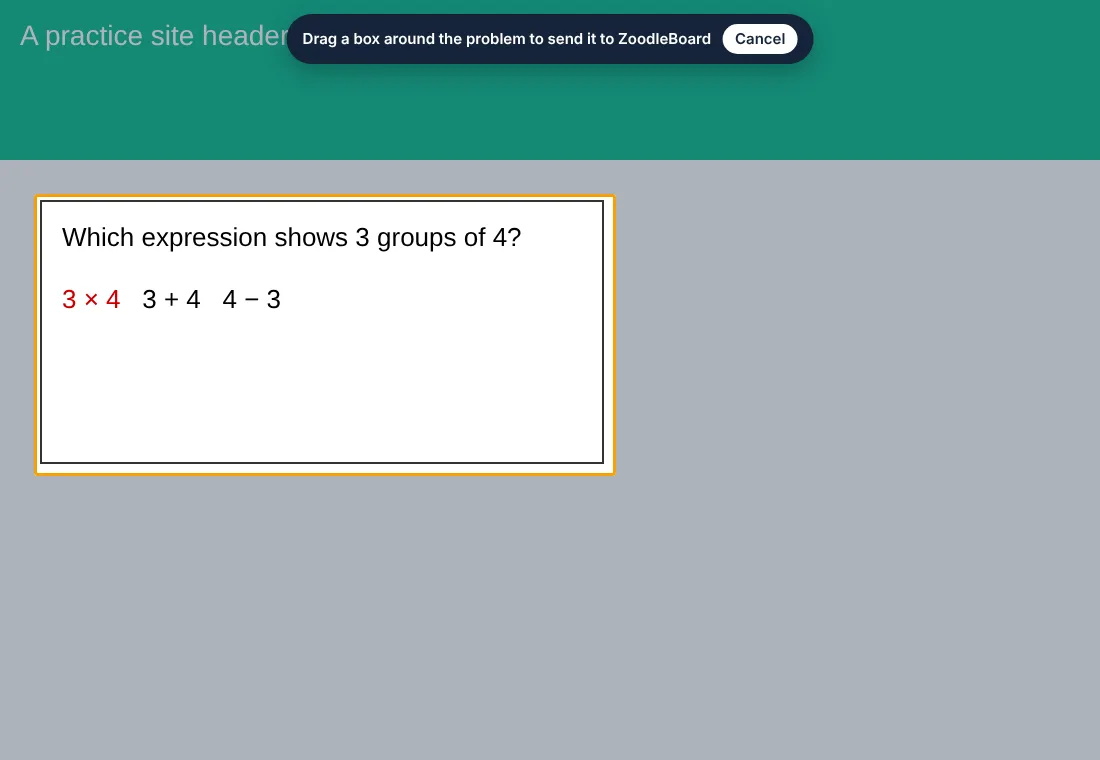
The page gets darker and says "Drag a box around the problem."
-
Drag a box around it
Hold the mouse button down and drag from one corner to the other.
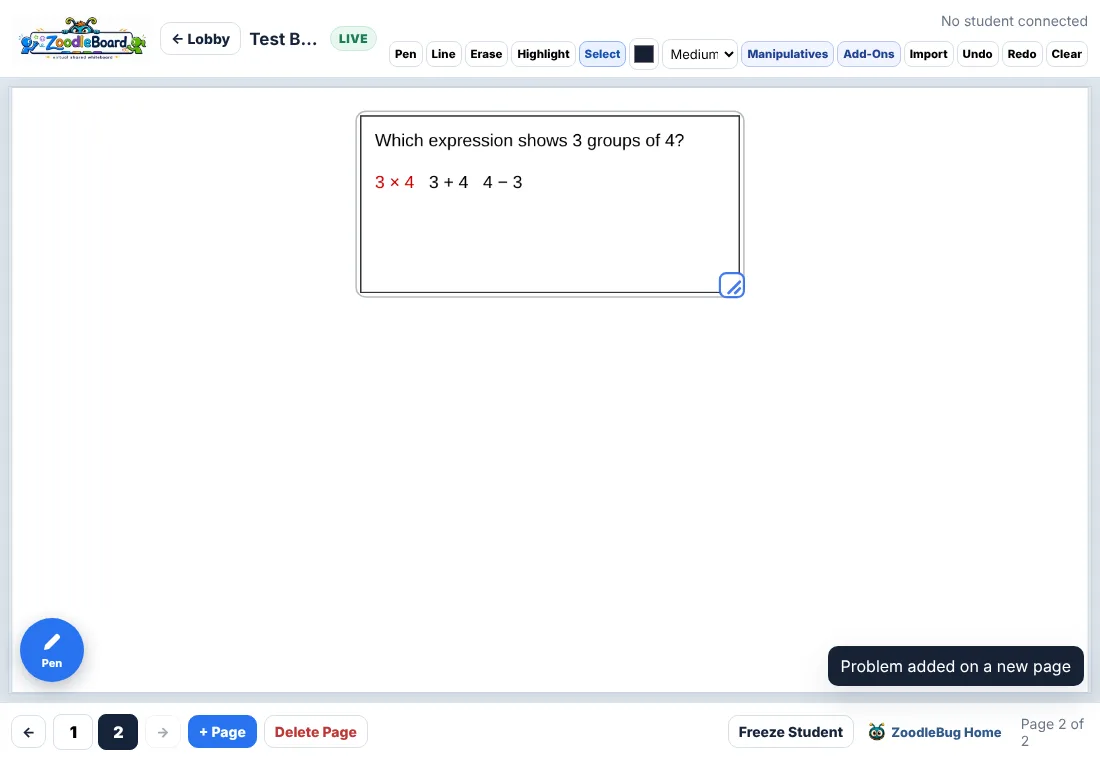
Your board comes back with it on a new page. Your student sees it too.
With ZoodleBoard Class send it to every student
-
Start your class
Press Quick Class (or Start a lesson) and let your students in.
-
Capture the problem
In another tab, click the ZoodleBoard button and drag a box around it, just like above.
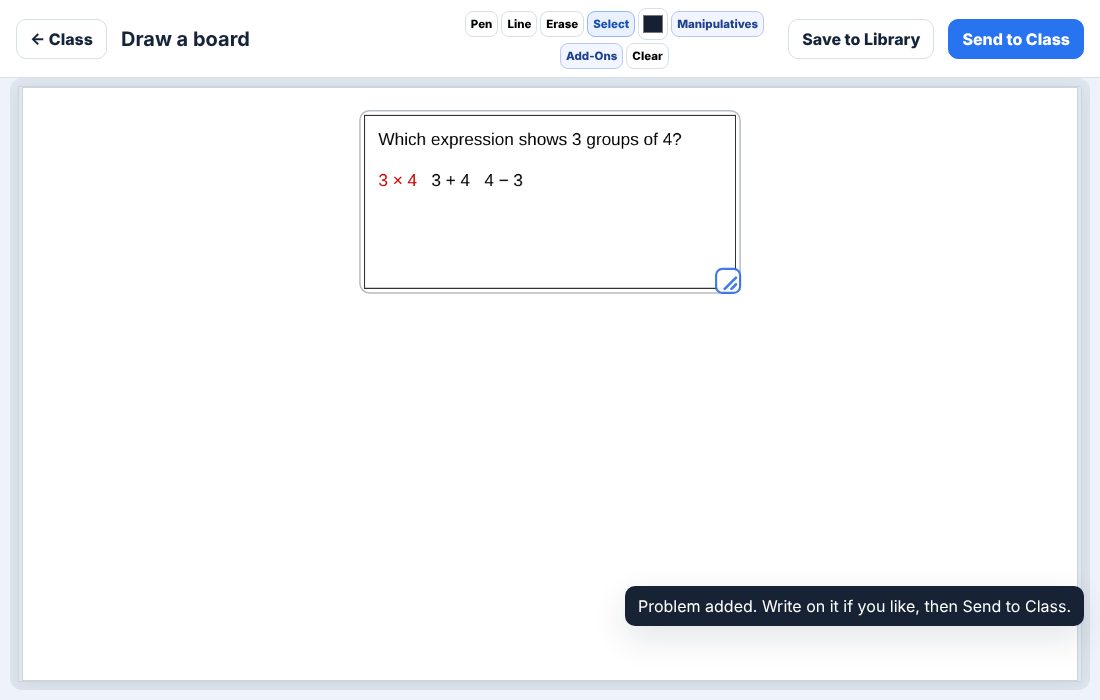
It opens on your class board, ready to send. Capture more and they stack underneath. Write on it if you like.
-
Press Send to Class
Every student gets their own copy to work on, then they press Turn In.
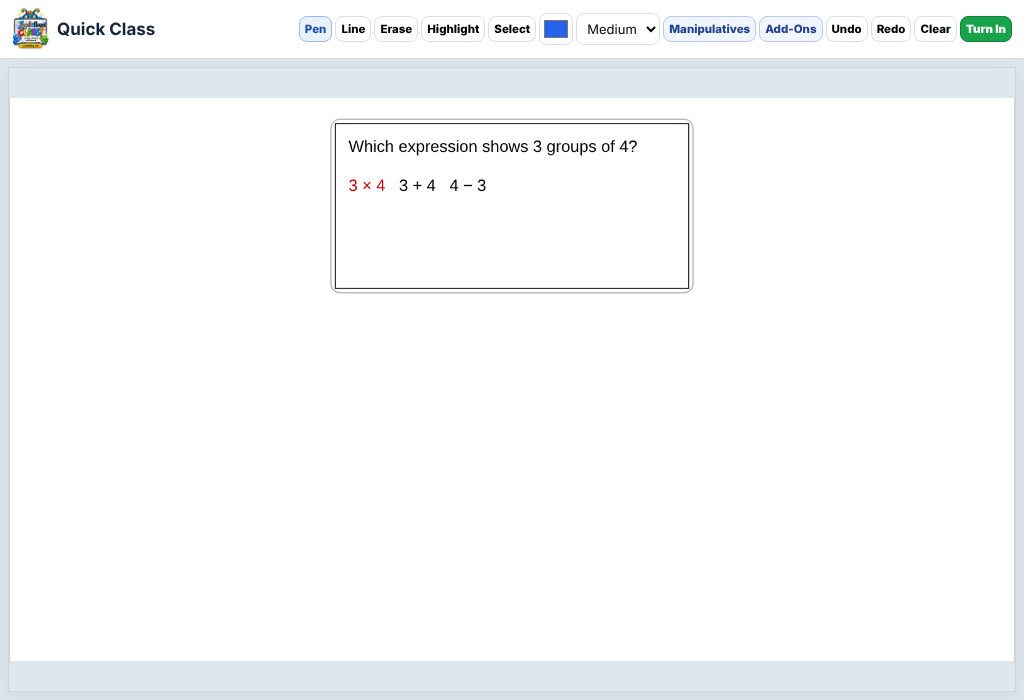
Tip: you can also copy a picture from anywhere and press Cmd + V on the class board to paste it.
If something goes wrong
- I set it up the old way, with "Load unpacked."
- Switch to the Chrome Web Store version so it updates by itself. Copy
chrome://extensionsinto the address bar, click Remove on the old Send to ZoodleBoard, then do step 1 above. You can delete the old send-to-zoodleboard folder too. - Nothing happens when I click the button.
- Chrome doesn't allow it on some of its own pages, like a new blank tab or the Chrome Web Store. Go to the problem's page and click again. If the page was open before you added the button, reload the page first.
- The problem didn't show up on my board.
- Make sure you're logged in to zoodleboard.com with a board open, then try again. Want to cancel instead? Press Esc.
- The problem is too small.
- On your board, click Select, click the problem, and drag its corner to make it bigger.